Logo and Site Identity

I really liked the handwritten look of a logo name – so after having a look on dafont.com I found the perfect typeset (Quick Signature Regular) I then tested it with my name and a few site titles.

The lowercase was my favourite, it looked a lot more dainty and elegant, so I tried it on my actual site..

After Seeing these on my actual site, I decided to got with ‘denee wall’ instead of ‘by – denee’ Just made a bit more sense.

Responsive Mode – About Page

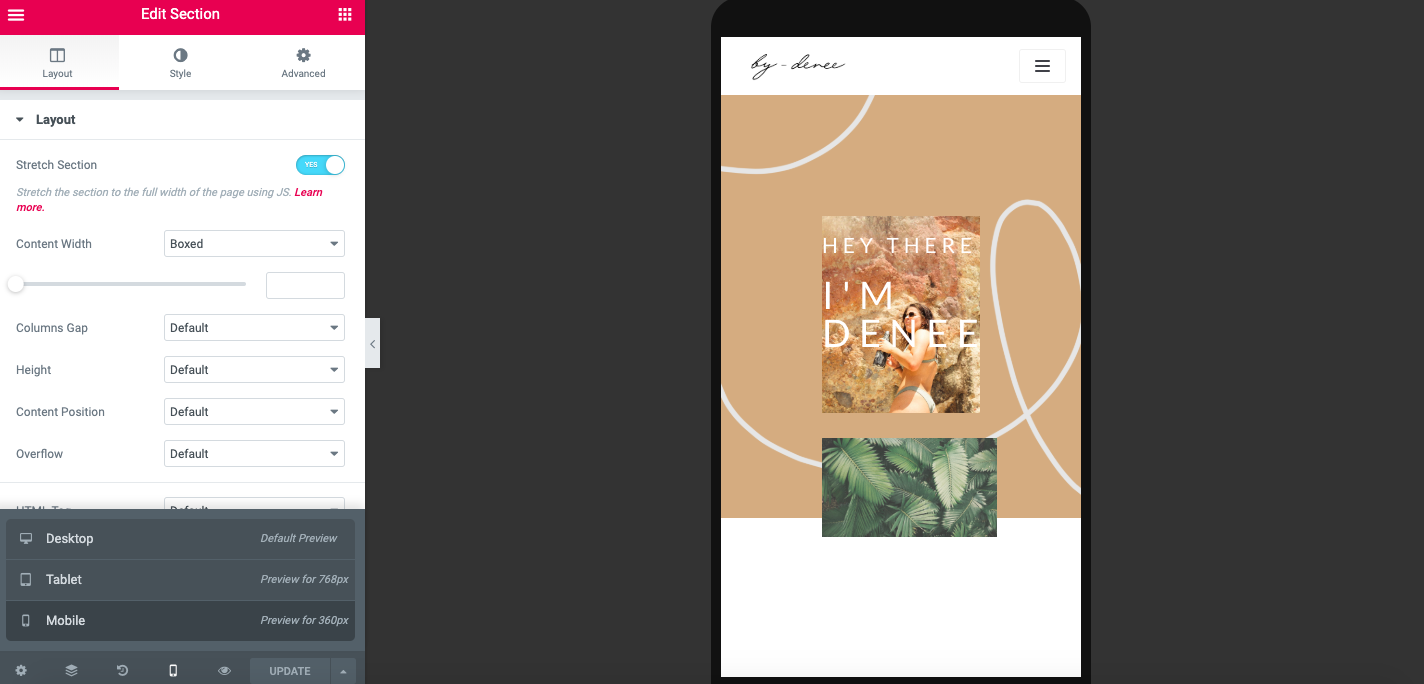
Just like my home page, the About page was a little messed up too. My first opening page was all muddled together and on top of each other.. This is a Before and After

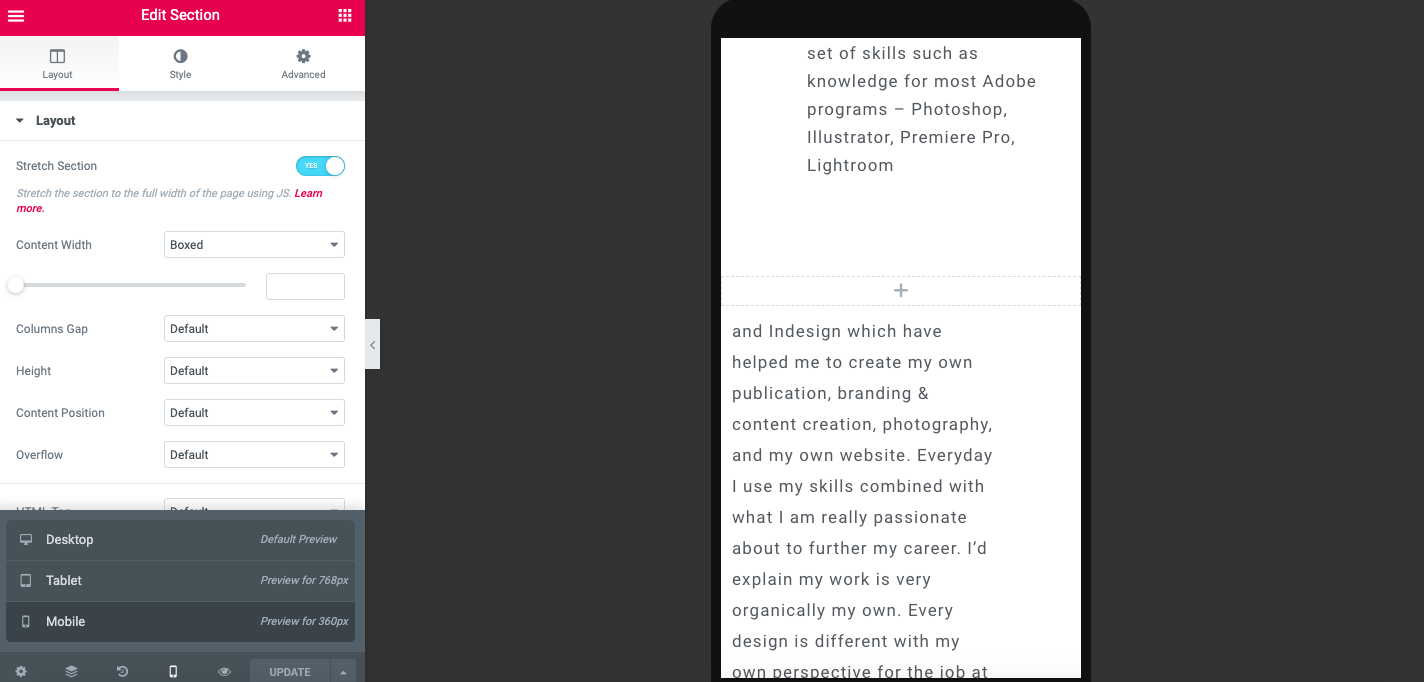
My write up also needed rearranging. To do this I changed the margins and a little bit of padding. Before and After..

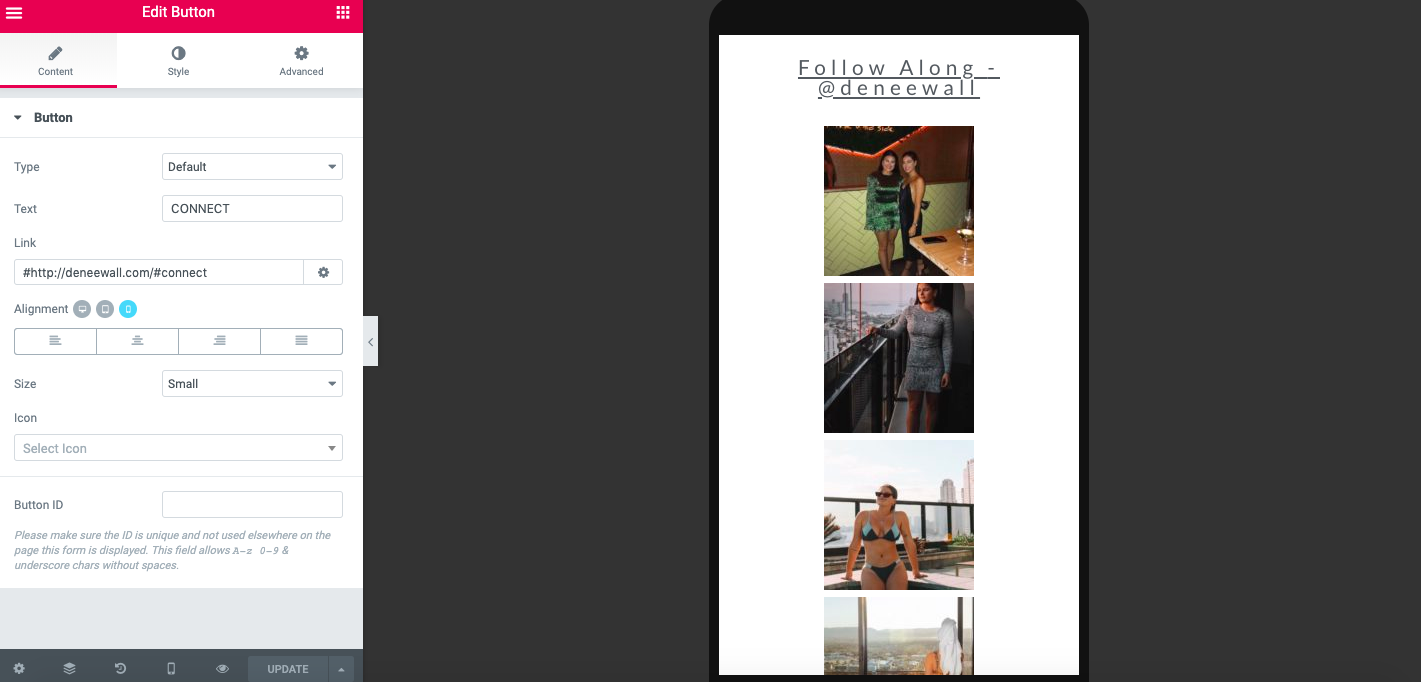
And then I had to change my social media to and image carousel… Before and After…

Responsive Mode – Home Page

In Elementor you can view what your website could look like from a desktop, tablet and mobile point of view. A lot of my designs clashed.

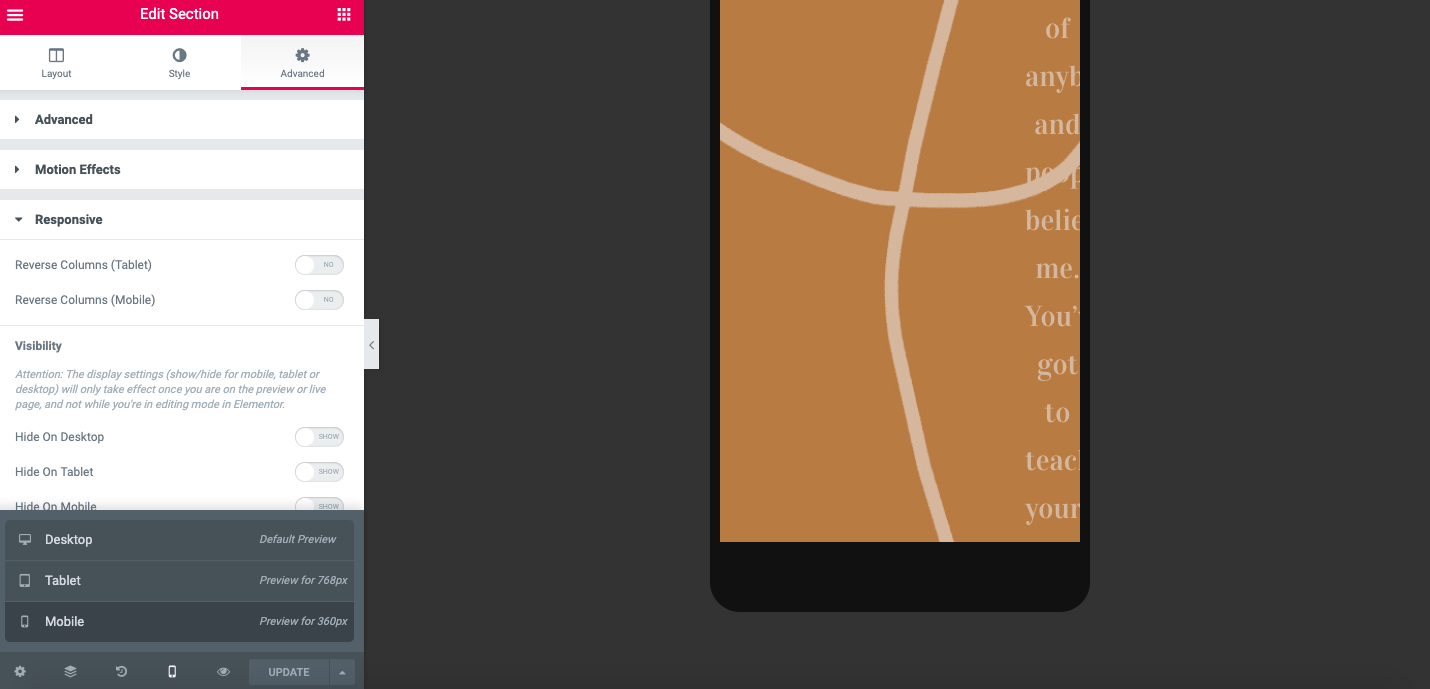
So for my front cover I had to hide the Welcome page and create a new one that worked for my mobile and tablet view of things. Also hiding those from my website. I have made new mobile and tablet responsive modes.

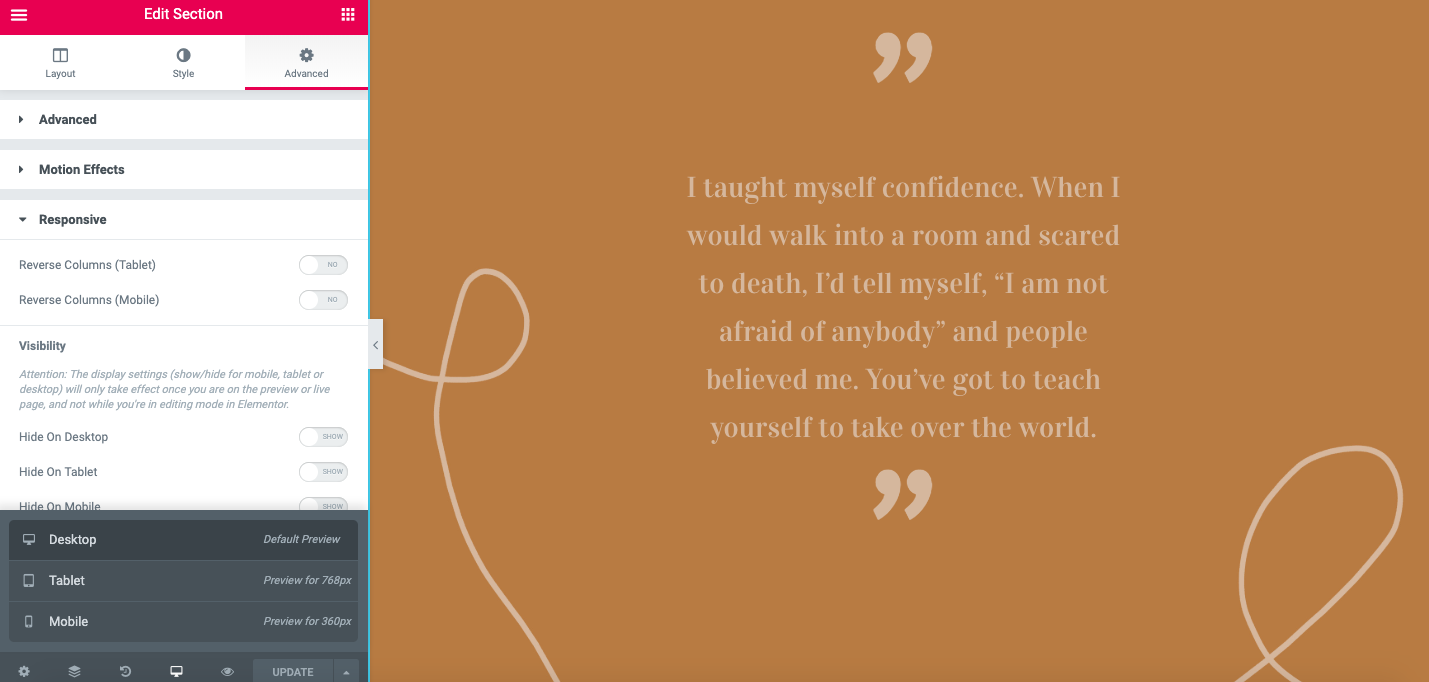
I also had to change my quote section because it was not working for my mobile and tablet version too! This is the before…

You can really see it on the mobile version. It’s completely out of focus and the tablet is far to squished. And this is after… You can see it is way better, you can actually see what the text is saying.

One of my articles also did not work so I changed that to make it more user friendly for the tablet. It was not picking up the photograph, so I moved it around, but also found a better photograph to use, one that was more awesome.

I also changer my photo grids and made image carousels for them. Worked way better for the mobile version.

About Page Background

For my about page I wanted it to tie in with my home page. Following my colour scheme I came up for four designs to choose from.

My favourite was the dark grey, but it didn’t tie in well enough with my photographs and the colour hadn’t been used before so I decided on the light yellowy orange.

Complete Change

After deciding to completely change my whole layout I decided to create a new wire frame to depict what I want and what layout will fit best. After playing around with some different layouts I came to this conclusion..

I also decided on a different colour pallet. I chose #2 because it was in my final 2 and I think the colours will really complement my portfolio and original photographs. The sunset tones are neutral and earthy.

Populate and Test

When customising my theme to get it to align with my Illustrator version, ‘Elementor’ which is the programe to edit our website with, did not like my collage type of design. Every time I would lay it out to how it would usually look something would go wrong. I originally could not layer my type and photos on top of my backgrounds. So I attempted to created a merged layer background like so in photoshop…

After testing my design, I could not get it to work. Every time it would double up and just be in the wrong place, it would overlap. And I don’t know how many times I tired to change the size of the background so it would fit. So I decided to scrap that whole layout and create a new one. A more user friendly design, with rectangle sections and a clear place for my portfolio.

Theme Selection

Theme selection was probably the hardest thing to decide. I am very stubborn and if it doesn’t look they way I like then it is not right. It took a week to find one I liked. I had to find a way to compromise and Neve was my best bet. I can always change the layout a little bit.

In my dashboard settings I then created my Information Architecture.

Website Design

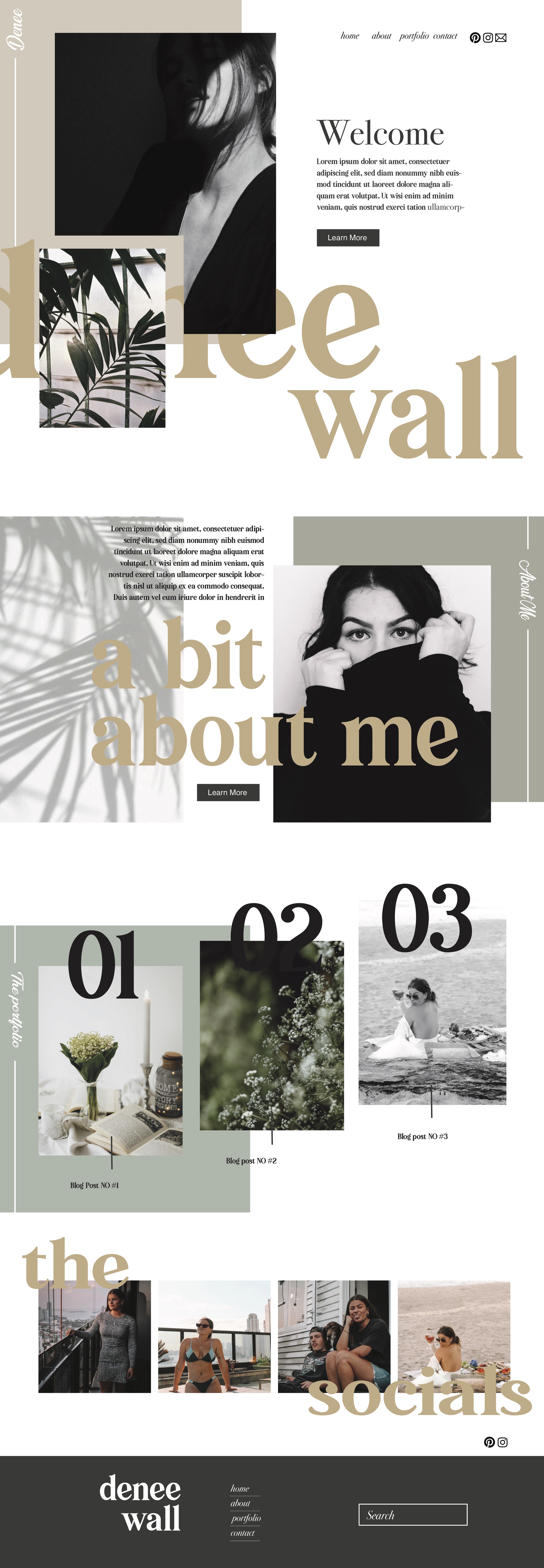
Using my final wireframe outline, I created this website design for my portfolio. I ended up following number #1 certain colour scheme that you can see in my other blog post. The shapes are strictly rectangles and squares. I have in fact created a collage type website to give it a more creative feel. I decided on 3 sets of Typography – Pioggia, Arial, and Ananda Black. My main heading text (Pioggia) I really wanted it to have a classy elegant feel to it.

From designing a desktop website, I could then create a mobile version. I did have to simplify it a lot, because of my collage layout it would all just smosh together and not look great.

Potential Fonts

For my fonts I wanted something elegant. I really like sans serif so I went with ‘Pioggia’ For my main heading and the numbers. I chose ‘Ananda Black’ for the sub heading, to show the audience what page they’re on. I chose ‘Arial regular’ for my main body of text. So I did choose more that 2, but it just would not have worked. The ‘Vogue’ type was a bit too fancy for what I was wanting, It could be good for a Heading but I stuck with ‘Pioggia’.

Colour Pallet

For my colour pallet I wanted to stick with a natural organic flow. Im my design these are the usual colours I would go for. The neutrals, the earthy tones. They’re more me than a bright over exaggerated website. After looking at the colour pallets all together I have finalised it to my favourite 2. Which happen to be #1 and #2. #1 is more beachy tones, whereas #2 is more sunset tones. I usually go for the beachy tones, So I chose that one. I understand that colour pallet more, and know what works well with those tones.